To manage your account or request a refund, you need to provide a receipt. Depending on where you bought your subscription, follow the steps below:
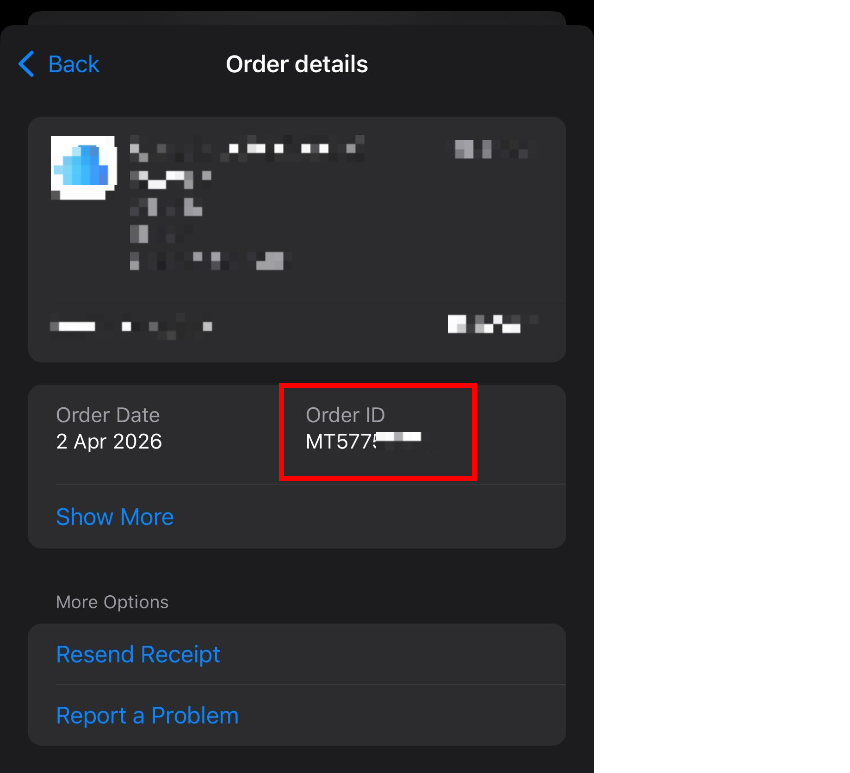
1. Purchased via Apple (App Store)
Apple sends a receipt to your Apple ID email address after every purchase. You can also find it in your phone settings:
Open the Settings app on your iPhone or iPad.
Tap your Name/Apple ID at the very top.
Tap Media & Purchases > View Account. (You might need to sign in).
Scroll down and tap Purchase History.
Find the ELSA Speak transaction to see the details.
Note: Take a screenshot to show the order id number.
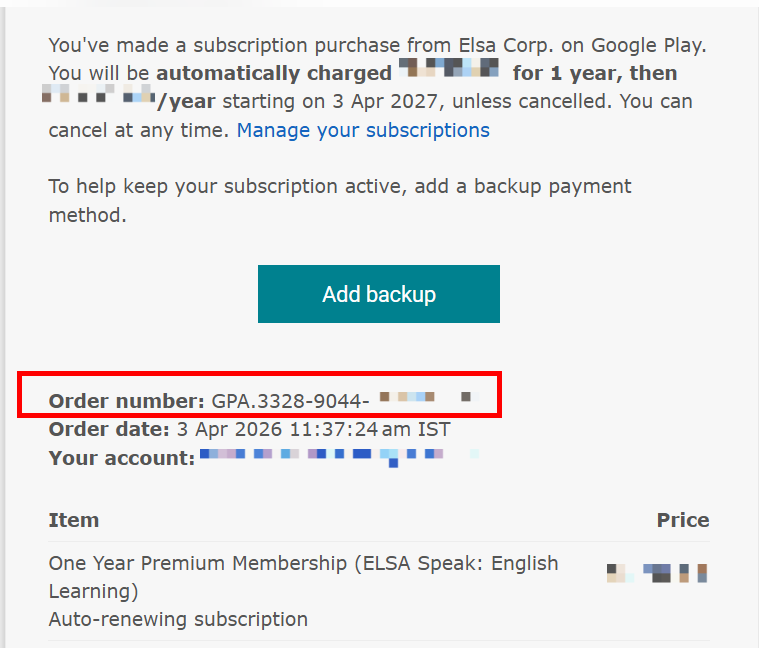
2. Purchased via Google (Google Play Store)
Google sends a confirmation email to your Gmail account. You can also find it online:
- Go to the Google Payments Center.
- Sign in with your Google account.
- On the left, click Activity.
- Select the ELSA Speak order to view and download your receipt.
- Note: Google receipts usually have an Order ID starting with "GPA" and we need this GPA code.
3. Purchased via ELSA Website
If you bought your subscription directly from our website (elsaspeak.com), the receipt is sent by ELSASPEAK.COM or our payment partners (like Stripe or PayPal).
- Check your Email: Search your inbox for "ELSA Speak" or "PayPal" to find your payment confirmation.
- Payment from ELSA: Look for a confirmation email sent directly by the ELSA Speak system or our payment processor.
- Payment via PayPal: If you used PayPal, look for a transaction receipt sent by PayPal.
- Customer Portal: You can also go to the Customer Portal on our website, enter your email, and get a link to download your past invoices.
Note:
Receipt from Google is sent from the address: googleplay-noreply@google.com
Receipt from Apple is sent from the address: no_reply@email.apple.com
Receipt from ELSA is sent from the address: invoice+statements+acct_1J4uLjGQZ6mLMCAo@stripe.com
Was this article helpful?
That’s Great!
Thank you for your feedback
Sorry! We couldn't be helpful
Thank you for your feedback
Feedback sent
We appreciate your effort and will try to fix the article