To purchase the ELSA Premium Lifetime plan in ELSA app, please follow these simple steps based on the app screens:
Step 1: Install ELSA App and Create an Account:
Install ELSA app on your mobile phone (Apple/Google). Create an ELSA account.
Please ensure you register your account before subscribing to any plans.
Step 1: Open the Upgrade Menu:
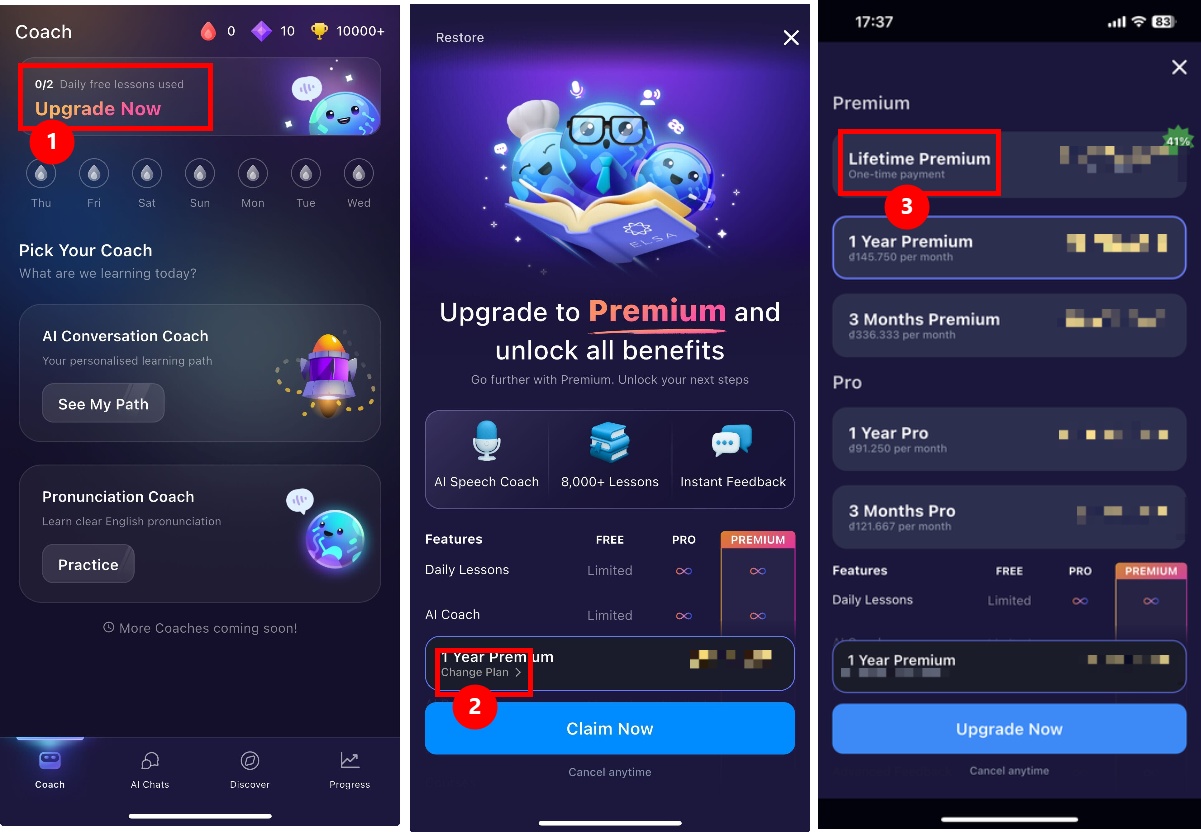
On the main Coach tab of your app, you will see a banner at the top showing your daily lesson usage. Tap the Upgrade Now button (marked as 1 in the image) to view the available premium features.
Step 2: Access All Learning Plans
Once you are on the "Upgrade to Premium" screen, the app usually shows a default plan (like 1 Year Premium). To see more options, tap the Change Plan button (marked as 2) located just above the "Claim Now" button.
Step 3: Select Lifetime Premium:
A list of all available plans for Premium and Pro will appear.
- Look for the Lifetime Premium option (marked as 3) at the top of the list.
- This is a one-time payment, meaning you pay once and have access forever without any recurring fees.
- Tap on Lifetime Premium and then click the Upgrade Now button at the bottom to complete your purchase through your App Store or Google Play account.
Step 4: Unlock Your Subscription:
- Your subscription is usually unlocked immediately after payment is finished. You will receive a receipt sent to your Apple ID account/Google account email.
- If the payment failed, then the subscription will not be unlocked.
- If your account still shows as "Free," please wait a few minutes as it might take a short time for the system to update. You can try to log out and log back into your account to refresh your status.
- If you are still not upgraded, tap on the Restore button (located at the top left of the upgrade screen) to manually sync your purchase with the app.
Notes about payment:
In-app purchases are processed through Apple Pay (for iOS) or Google Play Billing (for Android).
Ensure your Apple ID or Google Play Store account has an active and valid payment method (such as a credit/debit card or mobile payment) linked to it.
Your payment information must be up-to-date in your device settings to avoid transaction errors.
Your payment method must be supported by Apple/Google.
For payment issues, you can check out the following pages:
- Apple: https://support.apple.com/en-us/108095
- Google: https://support.google.com/googleplay/answer/1267137?hl=en&co=GENIE.Platform%3DAndroid
Was this article helpful?
That’s Great!
Thank you for your feedback
Sorry! We couldn't be helpful
Thank you for your feedback
Feedback sent
We appreciate your effort and will try to fix the article