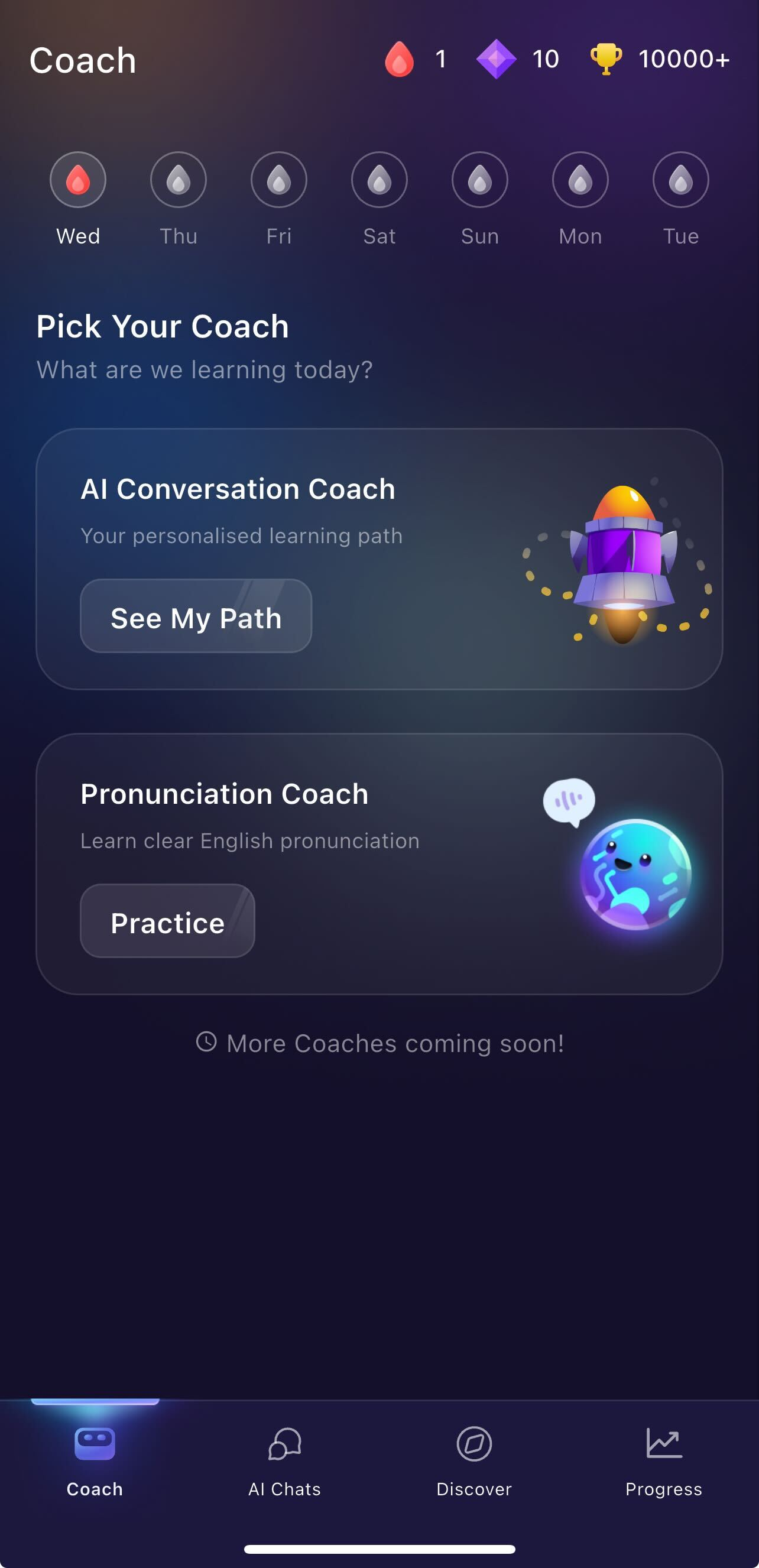
1. Coach:
This is where you can find the AI Conversation Coach (your personal learning path) and the Pronunciation Coach for clear English practice.
- Learning Path feature is located in AI Conversation Coach.
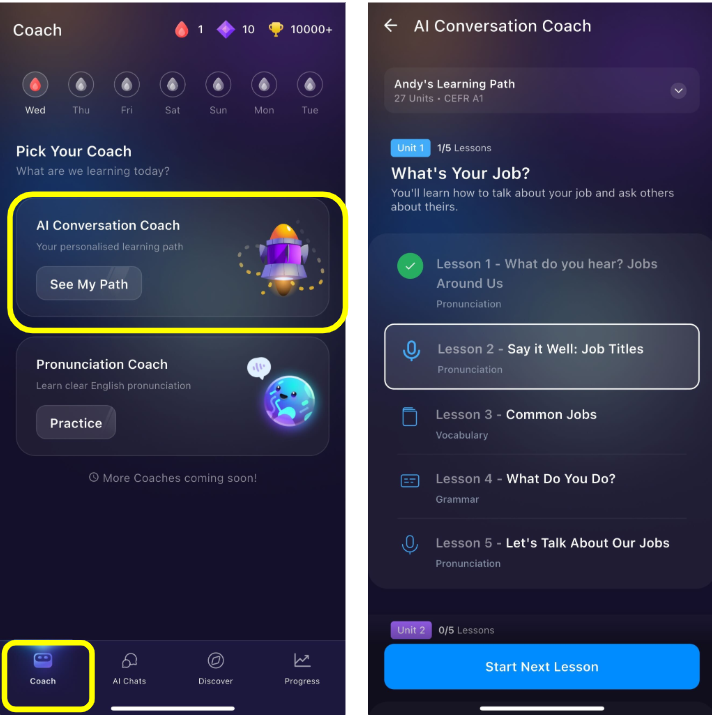
- Pronunciation Coach: The Dictionary, Skills (planets), and your Daily Practice are all located inside. You can find them by following these steps:
Tap the Coach tab at the bottom of the screen.
Tap Practice under the Pronunciation Coach section.
From the top to bottom:
Dictionary: Look up the meaning of any words to practice with.
Skills: Practice individual English sounds for beginners.
Daily Practice: Complete a small number of lessons every day.
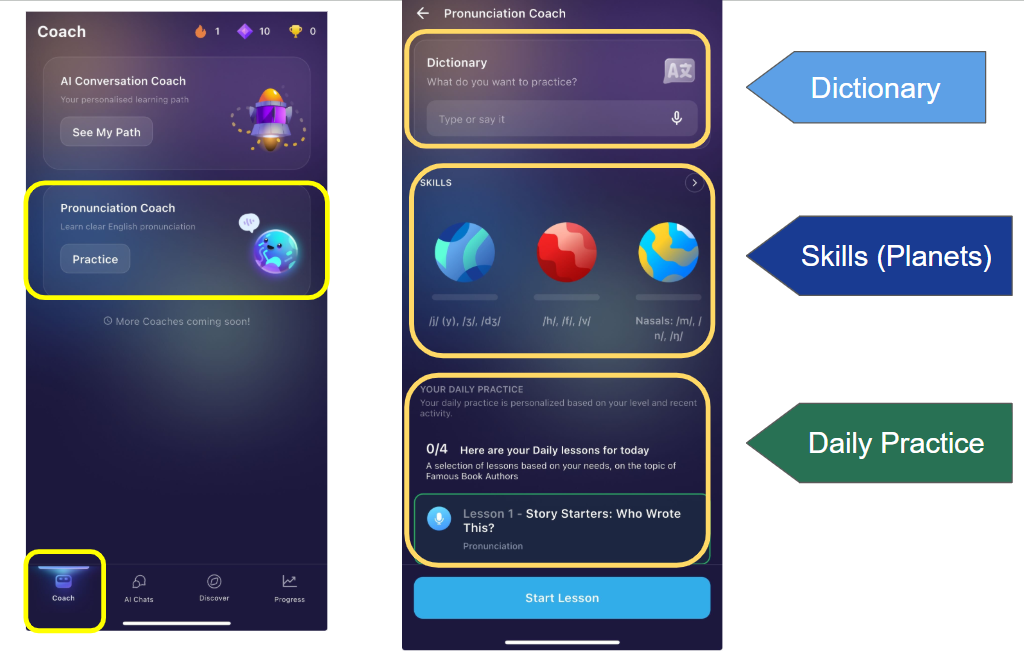
2. AI Chats:
This is the new home for the AI Tutor and the Role-Play Lab to practice conversations and create your own scenarios.
In Role-Play Lab, you can have a random scenario created for you, or create your own scenario. Additionally, you can choose among the various scenarios created by ELSA based on your activity.
3. Discover:
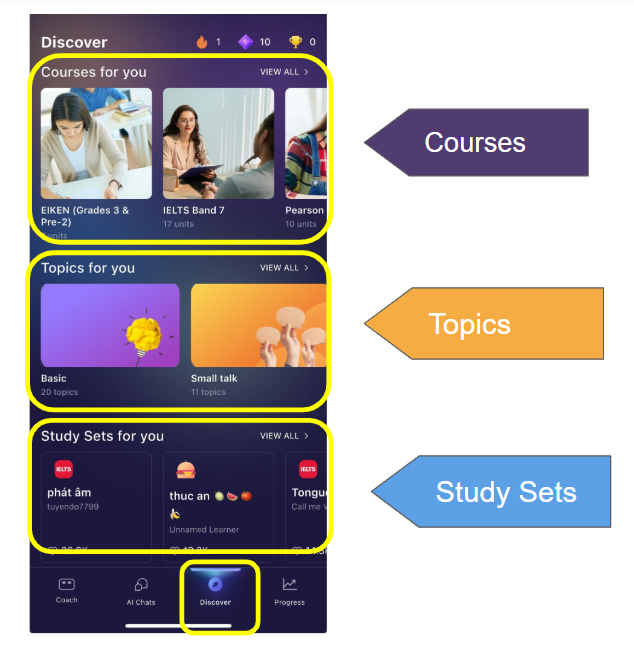
This tab is where you can explore other features like Courses, Topics, and Study Sets.
- Study Sets: These are lists of words or phrases you can practice. You can create your own sets or use sets made by the ELSA community to focus on the exact vocabulary you need.
- Courses: These are structured learning program designed for specific goals, such as IELTS or Oxford Business. When you finish all the lessons in a course, you can earn an e-Certificate to show your hard work.
- Topics: Lessons of different topics from Career to Daily Conversation, allowing you to practice speaking in your favorite topic.
4. Progress:
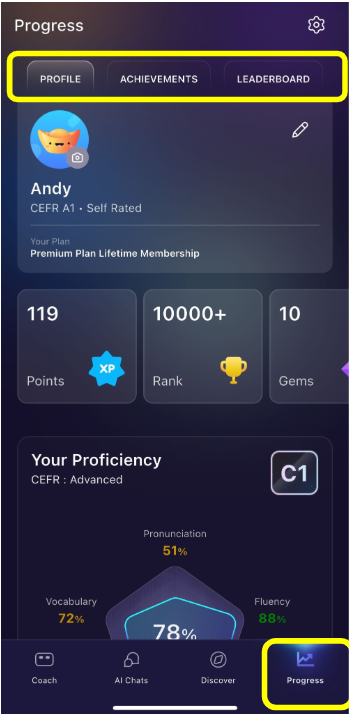
The Progress tab shows you how much you are improving in ELSA. At the top of this screen, you can easily switch between your Profile, Achievements, and the Leaderboard.
For more details on what's new in ELSA, check out this article here. See this folder here for a full list of available features.
To get the most out of these updates, we encourage you to explore the app yourself! While this article explains the navigation, using the app is the best way to see how everything works.
Was this article helpful?
That’s Great!
Thank you for your feedback
Sorry! We couldn't be helpful
Thank you for your feedback
Feedback sent
We appreciate your effort and will try to fix the article